
← Holiday Projector PRO
How to set up a Christmas window projection
Loop a Christmas scene in your window using a projector, a compatible Android TV device, and a video you already have.
Watch the Christmas projection walkthrough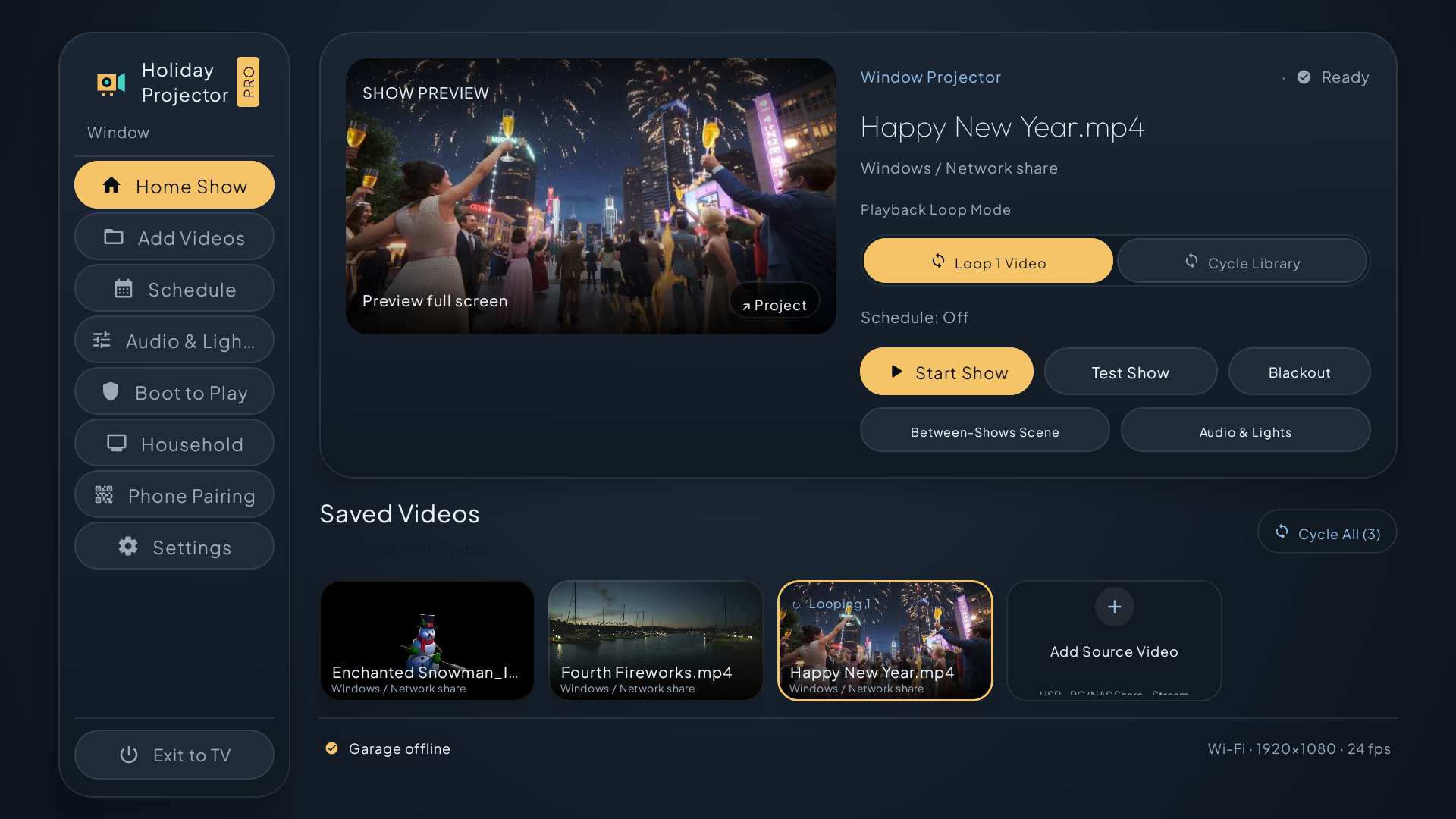
What you’ll need
A projector aimed at a rear-projection screen or diffuser in your window, a compatible Android TV or Google TV device (built in or connected by HDMI), and a Christmas video you have permission to display. Test the image from outside after dark.
Set up your show
- Choose a video. Open Add Videos. Pick a file from device storage or compatible USB storage, browse a supported Windows PC or NAS share, or paste a direct HTTP or HTTPS video link.
- Loop and align the scene. Select Loop 1 Video on Home Show, then preview it. Use the alignment grid and picture controls to fit the window. Try mirroring if text appears backward from outdoors.
- Test automatic startup. Enable Boot to Play, arm the restart test, and restart the Android device. Startup depends on the device and its permissions. Allow about 30 seconds after Android starts for the app to open, followed by your configured countdown.
- Pair your phone and set show hours. With your phone on the same home network, scan the QR code in Phone Pairing and enter the code shown on the TV. Use the web portal to control reachable projectors. Set weekly show hours in Schedule.
Try it with Holiday Projector PRO
Run one window or manage a bigger display from the same local dashboard.
Explore Holiday Projector PRO →
 Coming soon. The listing will open once Google Play makes it public.